

The Site Updates Report plugin for WordPress now includes the ability to add details of backups and security scans directly to your report.
This new feature provides clients with a clearer, more comprehensive view of ongoing site maintenance and care, helping demonstrate the proactive steps taken to keep their sites secure and up to date.
Table of Contents
What is Site Updates Report?
Site Updates Report is a powerful WordPress maintenance plugin built for agencies, developers, and website maintenance professionals who need to create clear, professional client reports with ease.
It automatically tracks WordPress core, plugin, and theme updates, then generates fully branded client reports delivered via email or PDF.
The plugin now also supports including backup activity and security scan details, giving clients a more complete and transparent view of ongoing website care.
Why Include Backups and Security Scans in Your Maintenance Report?
Including backups and security scans in your maintenance reports adds significant value for your clients:
- Demonstrates Proactive Care: Showing backups and security checks highlights the proactive measures you take to protect their website.
- Builds Trust and Transparency: Clients gain confidence knowing their site is not only updated but also safeguarded against potential risks.
- Provides a Complete Picture: Reports that include updates, backups, and security scans give clients a full view of ongoing site maintenance, making your services more tangible and professional.
- Helps Prevent Issues Before They Arise: By documenting regular backups and security scans, you reassure clients that potential problems are detected and addressed before they escalate.
Generate Backup and Security Scan Reports
Steps to include backups and security scans in your WordPress maintenance report:
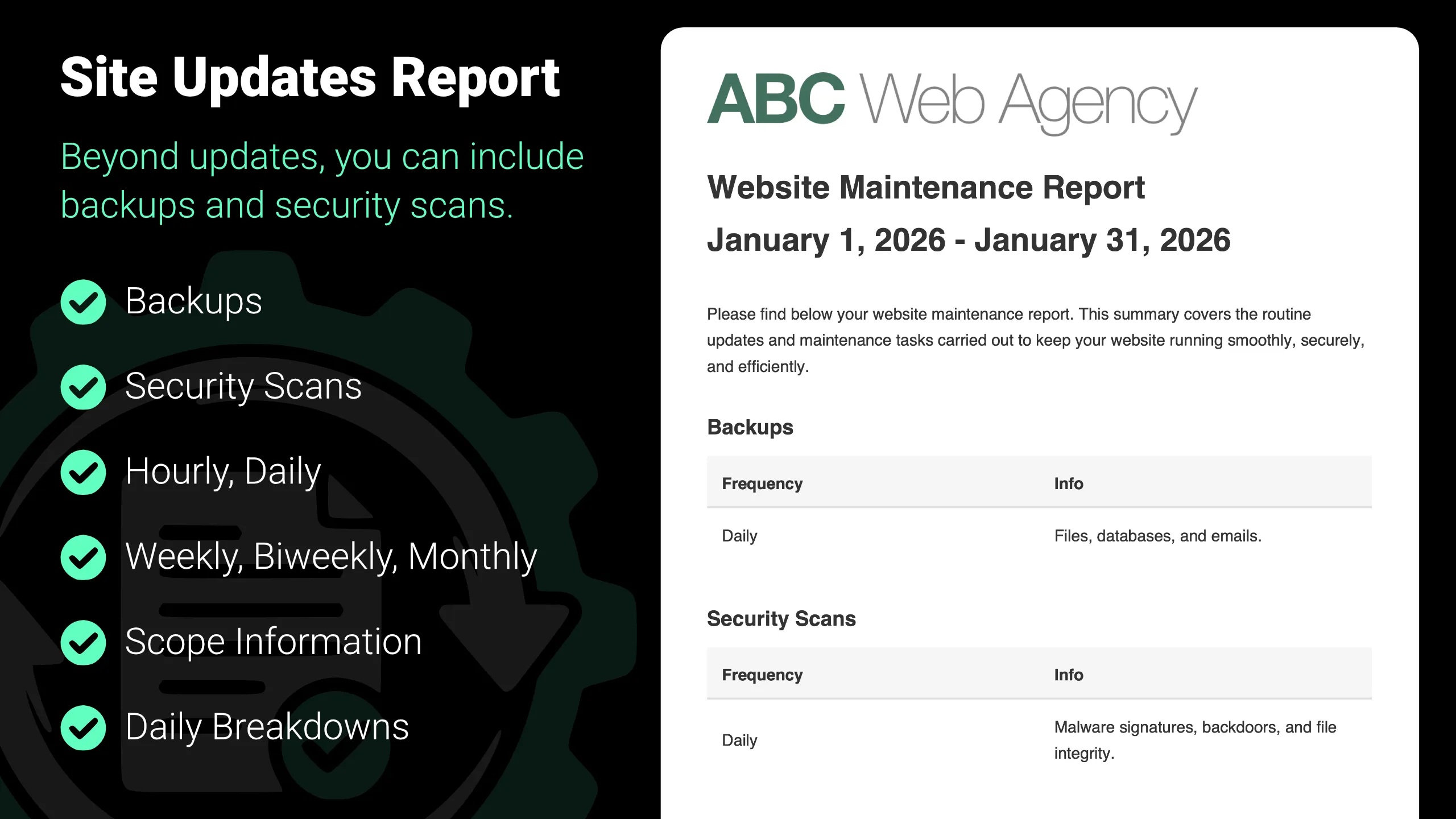
1. Install Site Updates Report
Download and install Site Updates Report from WordPress.org.
2. Enabling Sections
From Settings > Site Updates Report, in Report Content, use the Backups and Security scans checkboxes to choose whether those sections appear in the report. Both are off by default. You can enable one or both.
3. When Backups and/or Security Scans are enabled
Additional fields appear with the related options. If both are off, these are hidden.
4. Per-section Settings
For each section you turned on you get:
- Frequency – How often it runs: hourly, daily, weekly, biweekly, or monthly. This controls both what the report says and whether a daily breakdown is possible.
- Info – Optional text shown in the report (e.g. backup location, scan tool name, or other notes).
5. Daily Breakdowns (shared setting)
The Daily breakdowns checkbox only shows when at least one of Backups or Security scans is enabled. It applies to both:
- Unchecked – Each enabled section is shown as a simple table: frequency and info (e.g., “Monthly” and your info text). No per-day data.
- Checked – For any section whose frequency is hourly or daily, the report shows a per-day table: date, count (backups or Security scans), and info, one row per day in the report period. For weekly, biweekly, or monthly, it still shows only the simple frequency/info row; daily breakdown does not apply there.
So: daily breakdowns only affect items set to hourly or daily; the rest always use the single frequency/Info row.
6. What Appears
- Simple view (daily breakdowns off, or frequency not hourly/daily)
- One small table per section with frequency and info.
- Daily breakdown view (daily breakdowns on and frequency hourly or daily)
- A table with date, backups (or security scans), and Info, with one row per day in the report period. hourly = 24 per day; daily = 1 per day.
In short: Turn on backups and/or security scans, set frequency and info for each. Use daily breakdowns when you want per-day tables for hourly or daily items; leave it off for a single summary row per section.
Get Site Updates Report
You can download Site Updates Report from WordPress.org.